
Your virtual wardrobe
Organise · Combine · Get inspired
Getting dressed is easier with Clotti. Organise your wardrobe, create outfits, discover new combinations and get more out of what you already own.
- No ads
- No sign-up
- No subscriptions

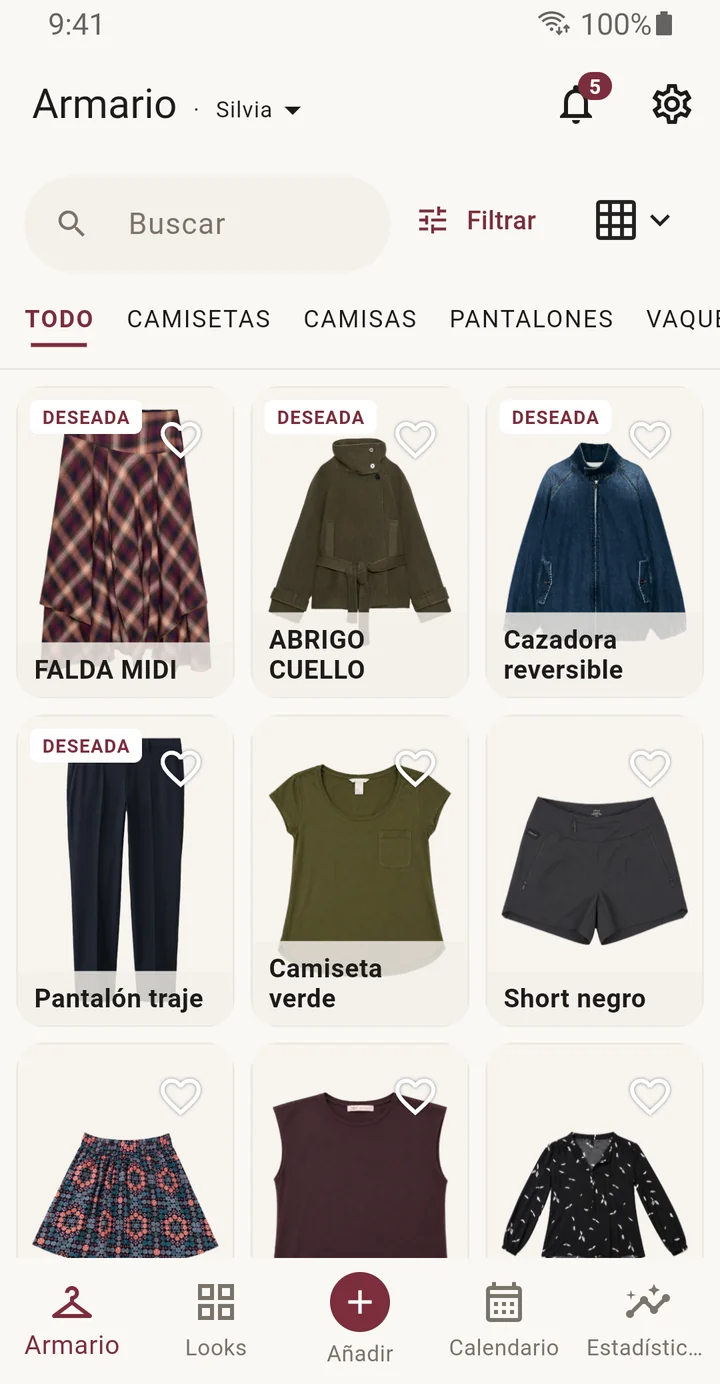
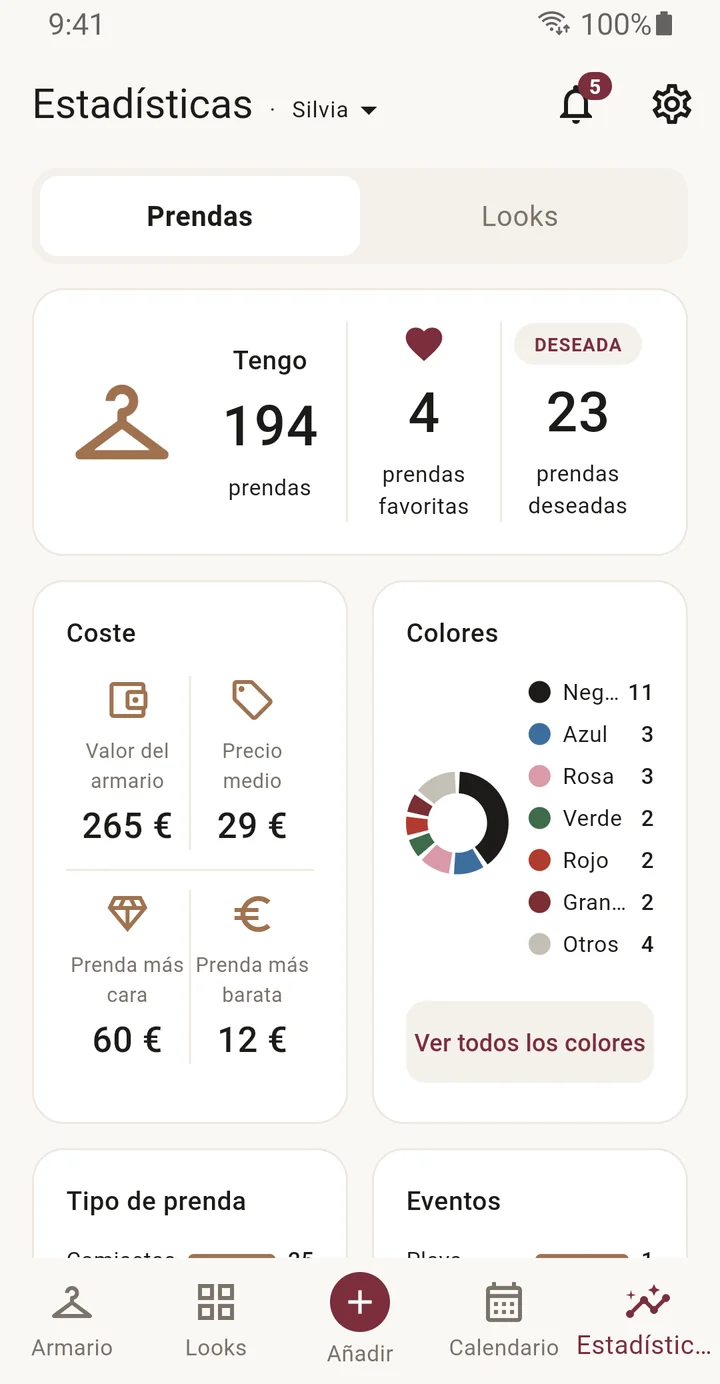
What is Clotti
Clotti is much more than a virtual wardrobe. It helps you keep your clothes organised, create outfits, plan your days and discover how you really use your items.
- Organise
your clothes - Create
outfits - Plan
your wardrobe - See how
you use it - WISHEDSave
your wishlist
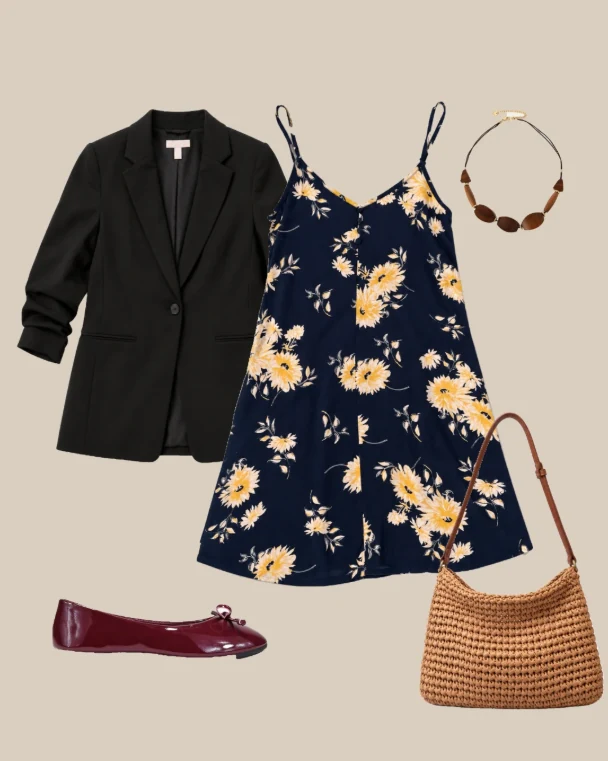
Create outfits that feel like you ♡
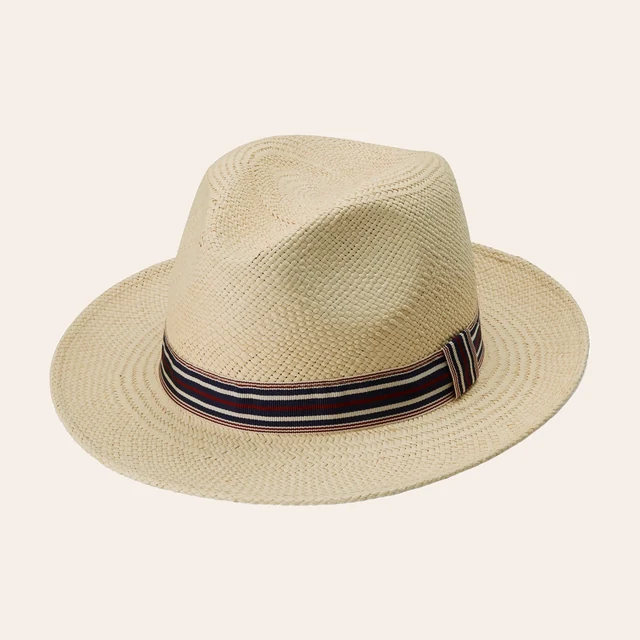
My wishlist
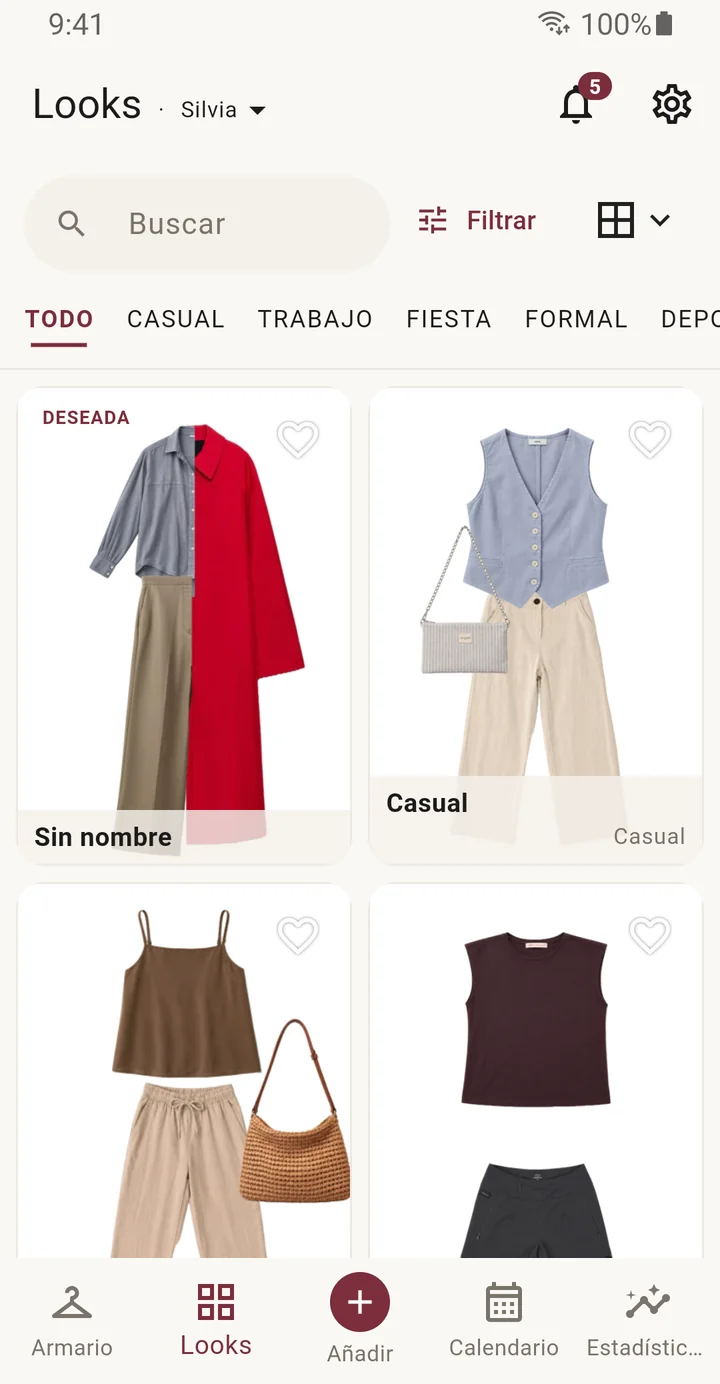
Clotti for phone
Take your wardrobe with you. Add your items, create outfits in seconds and save your wishlist wherever you are.
- Intuitive, visual interface
- Create outfits and organise at any time
- All your style in the palm of your hand
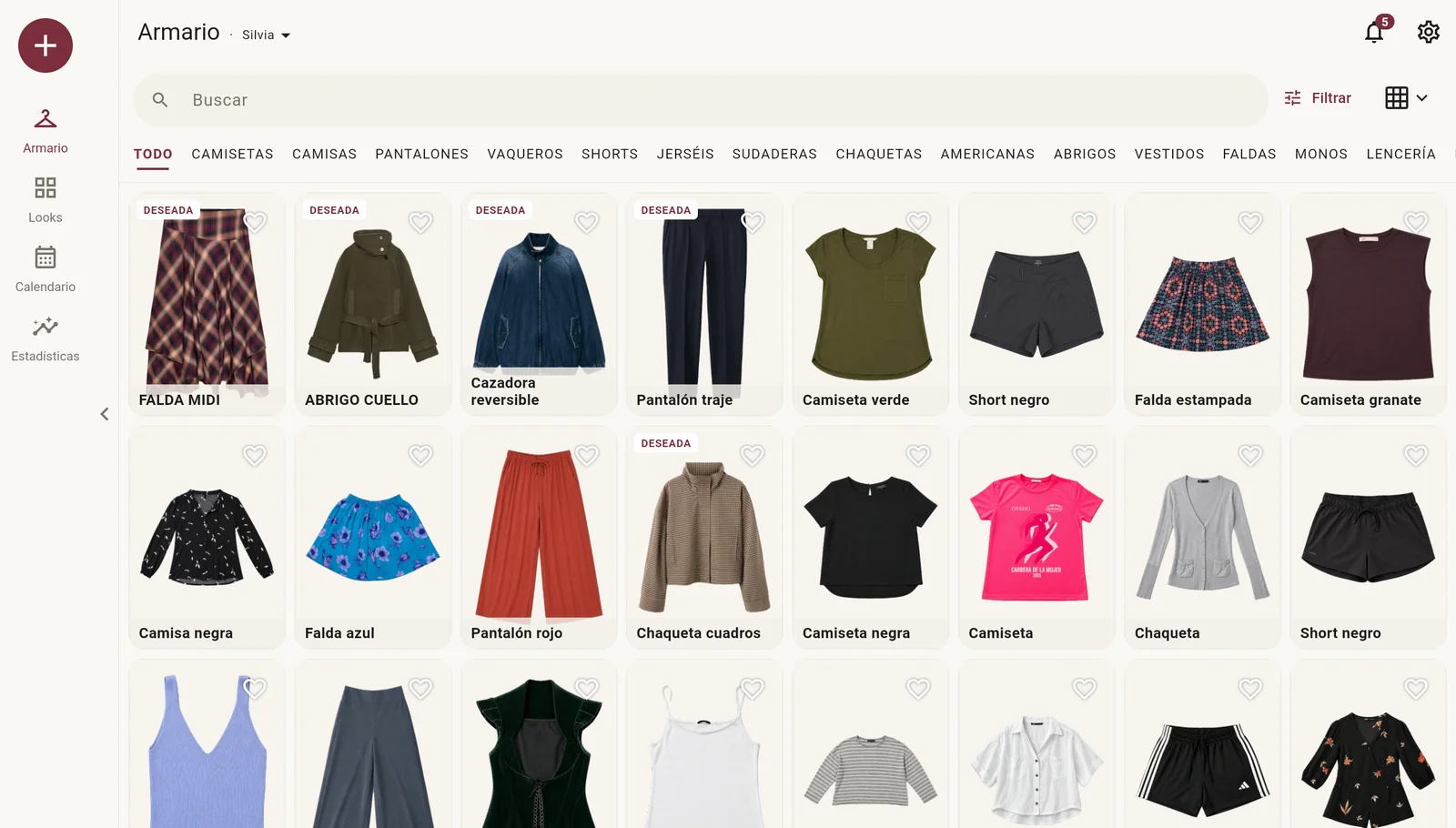
Clotti for tablet
A roomier, more comfortable way to organise your wardrobe, browse your outfits and plan in more detail.
- Spacious grid view
- Navigation designed for big screens
- The same experience, now bigger
Clotti for PC In development
Soon you will be able to enjoy Clotti on your computer too. A fuller version, ideal for managing your wardrobe with all the comfort of a big screen.
Frequently asked questions (FAQ)
Wardrobe
How do I add an item?
Tap "Add" in the bar and choose how you want to add the item: from your Gallery, from your Camera or from a Web page. You can select more than one image for a single item.
The "Add several items at once" option only takes images from your Gallery and creates one item per selected image.
Once the images are selected, the item editor opens. Every field is optional, but the more information you give, the more you will get out of the rest of the app. Clotti fills in the type of item and the colour automatically and gives it a name that combines both.
How do I add an item from an online store?
There are two ways:
- In "Add" choose Web, go to the item's web page and tap "Scan page". Choose the photos you want and tap "Create item": Clotti automatically extracts data such as the item's name, type, price, colour and brand.
- You can also share the web link with Clotti from your own browser. The app opens in scanner mode and you can choose the photos you want to add.
How do I add an item from my gallery?
There are two ways:
- In "Add" choose Gallery and pick the images you want.
- From your gallery, share the image you want with Clotti. The app opens and creates an item with the image you shared.
Can I add several items at once?
Yes: the "Add several items at once" option lets you add several images from your Gallery and creates one item per selected image. The items are saved automatically, and you can edit them one by one right then or leave it for later. Clotti detects and saves the type of item, the colour and the name automatically.
What does the app fill in automatically?
When you add an item, Clotti detects its category and colour automatically. It also gives it a name. You can always change them.
What is a "wishlist" item?
An item you do not own yet. It is saved in your wardrobe with the "WISHLIST" badge and, if you added it from the Web, its page shows the "See in store" button, which takes you to the store's link.
When you buy it, you can mark it as "I own it" in edit item.
What data can I save?
You can add whatever information you like. Clotti comes with a set of fields to fill in (category, price, brand, colour…) that work as filters when you look for an item in your wardrobe. They are also used to build your wardrobe's stats.
In Settings, under Organisation, you can delete the default filters and categories and make them your own.
Can I add photos of me wearing an item?
Yes, in "My photos with this item", on the edit item screen.
How do I edit an item I already added?
In Wardrobe, tap the item to see its information. Tap the pencil icon to open the item editor.
To edit the item's images, in edit item tap the pencil icon below the image. You can also add more images by tapping the camera icon.
How do I remove the background of an image?
Clotti asks whether you want to remove the image's background every time you add an item. You can also remove it in "Edit item": tap the pencil icon at the foot of the image and choose "Remove the background". If you do not like the result, "Restore the original photo" undoes it.
How do I delete an item?
There are three ways:
- From the wardrobe, press and hold the thumbnail of the item you want to delete. Clotti switches to "selection" mode and you can delete the selected item or items by tapping the bin icon at the top right of the screen.
- From the item's page, tap the three-dot icon in the top right corner of the screen and choose "Delete item".
- From the item editor, tap the bin icon at the top right of the screen.
Can I recover deleted items?
No. A deleted item cannot be recovered.
You can, however, keep a copy of your wardrobe or of specific items with the "Export" wardrobe and "Share the item as a file" options (full version).
How do I share an item?
Choose "Share the item as a file" (full version) by tapping the three-dot icon in the top right corner of the item's page. That file can be imported into Clotti on another device.
Choose "Share the photo" if you only want to share the item's image.
How do I mark an item as a favourite?
Tap the heart in the top right corner of the item's image.
What is the cost per wear?
The item's price divided by the number of times you have worn it. The more you wear it, the lower it gets.
How do I search and filter my items?
Use the search box to search by item name, by tag or by the value of any filter (for example, "summer" or "summer formal"). Tap "Filter" to choose the filters you want to apply.
How do I change how items are shown in the wardrobe?
Tap the grid icon to see the different view options.
How do I select several items at once?
Press and hold an item to enter selection mode, tick the others and choose to move them to another wardrobe, delete them or create an outfit with them.
Can I have more than one wardrobe?
Yes. You can create new wardrobes in Settings, under "My wardrobes".
Outfits
How do I create an outfit?
There are two ways:
- Tap "Add" and then "New outfit". A blank canvas appears where you can add the items you want with the "Select items" button. You can also generate a random outfit with the "Random" button.
- From the Wardrobe screen, press and hold the item you want to add to an outfit. The app switches to selection mode. Tick the other items you want and choose "New outfit" at the bottom of the screen. A canvas appears with the selected items, where you can add more and edit the ones already there.
Move the items, rotate them, cut them and resize them with your fingers. You can change the canvas background colour and add a text. Tap "Next" to add whatever information you want about the outfit and tap "Save outfit" when you are done.
What are templates?
Outlines that arrange the items for you: when you choose one, each item goes to its place. The template's image disappears when you save the outfit.
You can also add templates of your own.
What is the random outfit?
Choose which types of item you want and the app puts together an outfit at random, telling apart top, bottom, jackets and coats, full body, footwear, bags and accessories. Tap regenerate to see another one; with "Filters" you can narrow down which items it draws from.
Can I create an outfit with items I pick and random ones?
Yes. On the canvas screen, select the specific items you want in the outfit and then tap the "Random" button to choose which types of item you want picked at random.
Can I add photos of me wearing an outfit?
Yes, in "My photos with this outfit", when editing the outfit's information.
How do I edit an outfit I already created?
In Outfits, tap an outfit's thumbnail to see its information. Tap the pencil icon to open the outfit editor. Tap "Edit image" to edit the items that make up the outfit.
How do I delete an outfit?
There are three ways:
- From Outfits, press and hold the thumbnail of the outfit you want to delete. Clotti switches to "selection" mode and you can delete the selected outfits by tapping the bin icon at the top right of the screen.
- From the outfit's page, tap the three-dot icon in the top right corner of the screen and choose "Delete outfit".
- From the outfit editor, tap the bin icon at the top right of the screen.
Can I recover a deleted outfit?
No. A deleted outfit cannot be recovered.
You can, however, keep a copy of your wardrobe or of a specific outfit with the "Export" wardrobe and "Share the outfit as a file" options (full version).
How do I share an outfit?
Choose "Share the outfit as a file" (full version) by tapping the three-dot icon in the top right corner of the outfit's page. That file can be imported into Clotti on another device.
Choose "Share the image" if you only want to share the outfit's image.
How do I mark an outfit as a favourite?
Tap the heart in the top right corner of the outfit's image.
Calendar and wear
How do I log what I wore?
From an item or an outfit, tap "Log or schedule wear"; or from the Calendar, with the "+". Choose the day and save.
You cannot log a wear for a day that has not come yet. In that case you can only schedule it.
Can I plan an outfit or an item for another day?
Yes: choose a future date and it will be scheduled. If you have notifications on, the app reminds you when the day comes.
How do I see which days I have items or outfits scheduled?
From Calendar, tap the icon and choose "Show scheduled".
How do I see which days I wore items or outfits?
From Calendar, tap the icon and choose "Show worn".
Notifications
How do notifications work?
Tap the bell icon to choose which notifications you want: wear of items and outfits, so that you log what you wore; reminders of scheduled wears; and monthly and yearly recaps.
You can also set the notification schedule.
Stats
What do I see in Stats?
Your wardrobe's value, your colours, brands and categories, and the items and outfits you wear the most and the least.
Backups and sync
How do I back up my wardrobe?
In Settings, under My wardrobes, choose "Export" to create a .clotti file with the whole wardrobe. Keep it wherever you like; choose "Import wardrobe" to add wardrobes from a .clotti file.
How do I keep a copy of an item or an outfit?
To keep a copy of an item, choose "Share the item as a file" (full version) by tapping the three-dot icon in the top right corner of the item's page.
To keep a copy of an outfit, choose "Share the outfit as a file" (full version) by tapping the three-dot icon in the top right corner of the outfit's page.
How do I sync my wardrobe to another device?
In Settings, choose "Sync" and connect the same Google account on your devices. The copy goes to a private folder in your Google Drive.
Does Clotti offer cloud storage?
No. Backups are stored in your own Google Drive account.
Customisation
How do I change the app's colours?
In Settings → General appearance: main colour (background), secondary colour (buttons and icons) and the style of the cards that show the information of items and outfits.
Can I choose what the item and outfit cards show?
Yes, in Settings → Display you can choose what information (name, price, brand, favourite heart…) the thumbnails of the Wardrobe and Outfits screens show.
Can I choose what the item and outfit pages show?
Yes, in Settings → Display you can choose which sections (wear, details, tags, notes, my photos…) are shown and whether they start expanded.
Can I create my own item categories and filters?
Yes, in Settings → Organisation. Add, rename, reorder or delete item categories and filters; when deleting, you can reassign the items of the deleted category or filter.
How do I change the language, the currency or the text size?
In Settings → Preferences.
Full version
Is Clotti free?
Yes, up to 100 items and 30 outfits. The full version is a single payment, forever.
What does the full version include?
Unlimited items and outfits, sync between devices through your Google Drive, and importing and exporting .clotti files.
Does Clotti include artificial intelligence features?
No. Clotti only uses free models that run on your phone, such as the one that detects the type of item; it does not offer cloud artificial intelligence features, as they would require a subscription.
I changed phone or reinstalled Clotti. Do I have to pay again?
No. The purchase belongs to your Google Play account, not to the phone. If the app shows as the free version, go to Settings → Full version and tap "I already bought it": Clotti checks with Google Play and turns it on without charging you again.
Make sure the Play Store is using the same Google account you paid with.
Privacy
Where are my items and photos stored?
On your phone. They only leave it if you turn sync on (to your own Google Drive) or if you export or share something.
What are error reports?
If you turn them on and the app fails, a technical report is sent (the error, the version and the phone model). Never your items, photos or personal data.
Does Clotti collect user data and share it with third parties?
No. Clotti has no servers of its own: your items, photos and outfits stay on your phone and nobody else can see them. There are no ads, no analytics and no selling of data.
The only thing that can be sent is the technical error reports, and only if you turn them on; Google (Firebase Crashlytics) receives them so the failure can be fixed. Sync uses your own Google Drive, and the full version purchase is handled by Google Play.